Using Typst locally
Typst is a typesetting system. Think LaTeX if you're a STEM nerd, or Markdown if you're a Discord moderator. Unlike those other markup languages, Typst was designed to be easier to write, faster to compile, and more beginner-friendly. Technically, Markdown also fits these criteria, except for the fact that it does not compile, so we are really comparing Typst with LaTeX here.
Personally, it's also a replacement for word processors, with the great feature of being plain text. There's no need for fancy, bloated, and often proprietary applications just to read some basic text. Unfortunately, Typst does have its own version of this: typst.app. Which as you guessed by the link, requires the INTERNET! This is really bad when I want to write my blog[1] under four metres of solid lead, or access my journal up in the clouds[2].
I want a local environment where I can work on my Typst documents, use Git for version control, and collaborate with others. For me, this problem is easily solved through the use of my favourite text editor, and the only good option, Neovim[3]. However, Neovim has a learning curve, and most people will not go out of their way to learn it. Very sad indeed, since Vim has the best motions for writing, whether that is for prose or code.
But alas, normies exist in this world, looking at you, writers at GameDev, and they would rather stick to their mouse for navigation than learn elite motions. Thus, I had to explore solutions for them. I landed on Mueez Khan’s video and decided to adapt it into written form.
Source video: Getting started with Typst locally - Typing with Typst.
The bits you actually need
You only need two things:
- VS Codium, which is the telemetry-free sibling of VS Code.
- The Tiny Mist Typst extension by Myriad Dream, which gives you syntax highlighting and a live preview.
If you already have a preferred editor and know what you are doing, you can probably stop reading now. Honesty, I don't even know why you are reading this[4].
Step 1: Install VS Codium
Head over to vscodium.com.
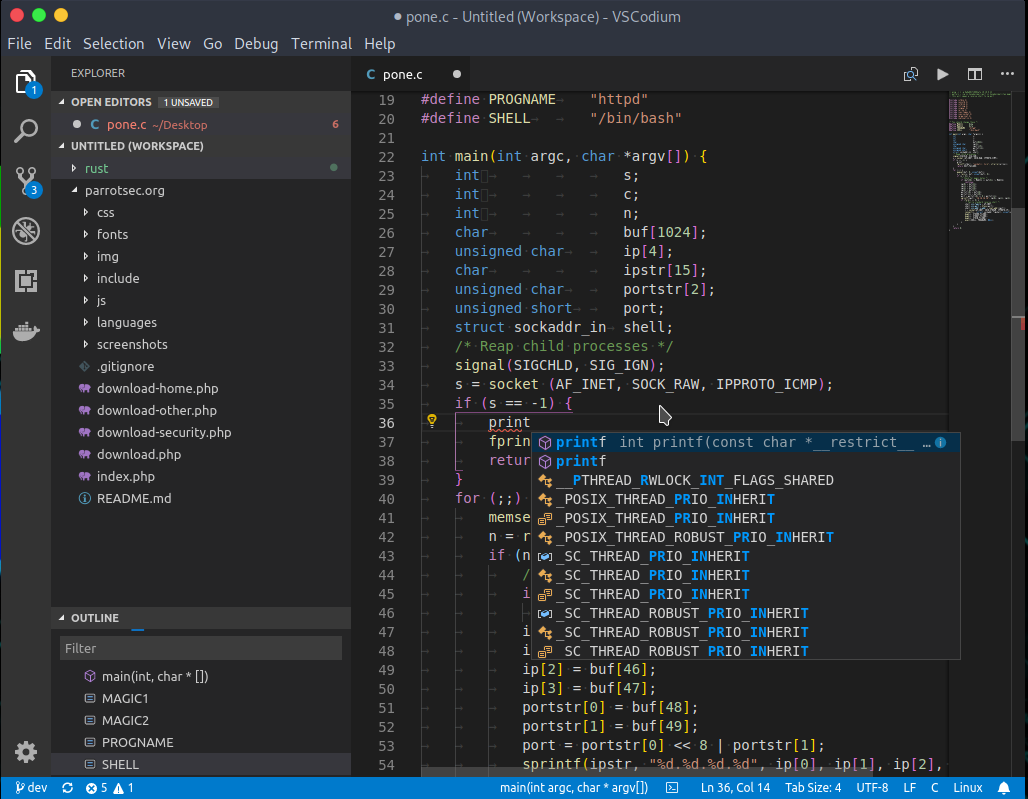
From there, you have two sensible options:
- Click the giant Download latest release button and grab the installer for your operating system and CPU architecture.
- Use a package manager if that is more your style[5].
Examples:
- macOS with Homebrew:
brew install --cask vscodium - Windows with Winget:
winget install vscodium - Windows with Chocolatey:
choco install vscodium - Windows with Scoop:
scoop install vscodium
If you are on Windows, make sure you download the right installer. If you are on a newer Apple machine, that usually means the ARM build. If you choose the wrong one, your computer will not explode, but it will be annoying.
Step 2: Install the Tiny Mist Typst extension
Open VS Codium, then click the Extensions tab in the left-hand sidebar.
Search for Tiny Mist Typst and install the one published by Myriad Dream.
If search fails for whatever reason, the extension page is here: Tiny Mist Typst on Open VSX.
This extension is the bit that makes the whole thing pleasant. Without it, you are basically just staring at raw text and pretending to be productive[6]. It uses a standard called LSP (Language Server Protocol) in order to communicate with your editor (VSCodium).
Step 3: Make a folder for your Typst files
Click the Explorer tab at the top of the left sidebar and choose Open
Folder. Pick an existing folder or create one just for your Typst files. A
name like typst-examples is perfectly fine. You do not need to overthink this.
Once the folder is open, click New File and a file ending in .typ. For
example: main.typ.
Step 4: Open the preview and start typing
With your new .typ file open, click the Typst Preview button (it's the magnifying-glass-style button on the right side or near
the upper-right corner with a vertical split).
That opens a live preview panel beside your editor. As you type, your document renders immediately, which is the main reason Typst feels so much less painful than LaTeX for normal human beings.
Try this:
I showed you my source code, pls respondYou should see the rendered output appear on the right almost instantly.
Step 5: Save your work like a responsible adult
You still need to save the file yourself:
- Windows/Linux:
Ctrl + S - macOS:
Cmd + S
If there is a little white dot next to the file name, it means the file has unsaved changes. When the dot disappears, your work is actually on disk instead of living dangerously in RAM.
That is basically it
At this point you have a local, telemetry-free Typst setup that is much nicer than being trapped in a browser tab. You can write documents offline, keep them in Git, sync them however you like, and generally behave like someone with good taste.
If all you wanted was a simple local Typst workflow without touching Neovim, this is probably the most painless route.
- 1.
I don't use Typst for this blog at all, instead I use Markdown that gets compiled using 11ty!
- 2.
I meant actual clouds, as in flying. Not the mystery "cloud" these big-tech companies offer.
- 3.
Yes, I see you GNU Emacs users. Don't worry, I also use Emacs, so stay tuned for that post.
- 4.
Hmm, maybe your name is Kutay? If so, thank you for reading. If not, well what's your name then?
- 5.
If you know this, why are you here? Regardless thank you for reading my blog.
- 6.
Not true, ask rexim.
- ← Previous
ROS1 Cheatsheet - Next →
Using GNU Emacs